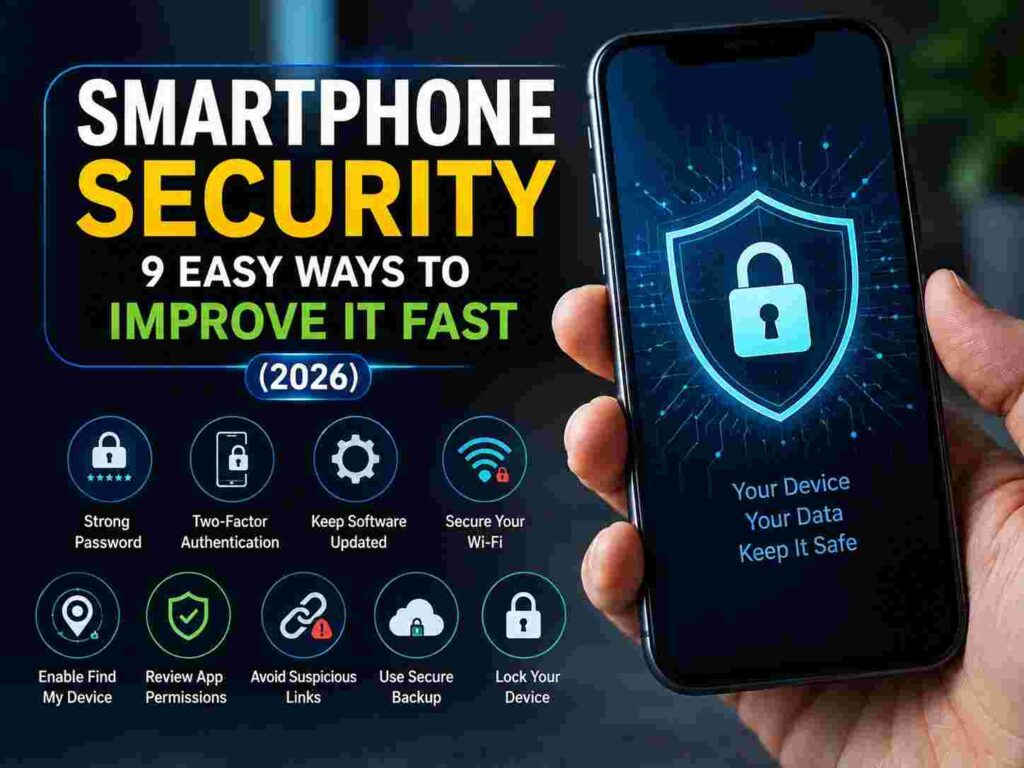
Your phone knows more about you than your best friend does. It holds your bank details, private messages, photos, and even your location history — yet most people protect it with nothing more than a four-digit code they set years ago. The good news? You don’t need to download a single security app to lock things down. Your phone already has powerful protection tools built in. You just have to turn them on.
Below are nine practical, no-app-required steps that make a real difference. Each one takes just a few minutes.
1. Set Up a Real Lock Screen (Not Just a Swipe)
If your phone opens with a swipe or a simple pattern, it’s basically unlocked already. A determined stranger can guess a four-digit PIN in under 20 tries using common combinations like “1234” or a birth year.
What to do instead:
- Use a 6-digit PIN or longer, not a 4-digit one
- Turn on Face ID, fingerprint unlock, or both, as a fast daily option
- Avoid patterns — they leave visible smudge trails on the screen that reveal the shape
On both iPhone and Android, this setting lives under Settings > Face ID & Passcode (iPhone) or Settings > Security > Screen Lock (Android). It takes about 90 seconds to upgrade from a weak PIN to a strong one.
2. Turn On Automatic Software Updates
Every time Apple or Google releases a software update, part of it usually patches a security flaw that hackers were actively exploiting. In 2023, one widely reported iPhone spyware campaign relied entirely on a security gap that had already been fixed in a newer software version — the victims simply hadn’t updated yet.
To automate this:
- iPhone: Settings > General > Software Update > Automatic Updates
- Android: Settings > System > System Update > Auto-update
Set it and forget it. This single step closes more security holes than almost anything else on this list.
3. Use a Real Password Manager Built Into Your Phone
You don’t need a third-party app for this — both iPhones and Android phones now include a built-in password manager that generates and stores strong, unique passwords for every account.
Why this matters: if you reuse the same password across five apps and one of them gets breached (which happens constantly — data breaches expose billions of passwords every year), Security hackers try that same password on your email, banking, and social media accounts. A unique password per account stops that chain reaction cold.
Where to find it:
- iPhone: Settings > Passwords
- Android: Settings > Google > Password Manager
Both will auto-fill saved passwords and suggest strong new ones when you sign up for something.
4. Enable Two-Factor Authentication the Right Way
Two-factor authentication (2FA) means that even if someone steals your password, they still can’t get into your account without a second code. Most people know this exists — but many still use text message (SMS) codes, Security which are the weakest version.
Here’s the upgrade:
- SMS codes can be intercepted through a scam called “SIM swapping,” where a criminal tricks your phone carrier into moving your number to their device
- Instead, use built-in authenticator features (like Apple’s or Google’s account security settings) or code-generating tools baked into your phone’s settings, when available
- For your most important accounts — email and banking — always turn 2FA on, even if it adds a few extra seconds to log in
Think of your password as a house key and 2FA as a second deadbolt. One lock can be picked. Two rarely are.
5. Review App Permissions You Already Granted
You don’t need a new app to fix this — you need five minutes to look at the apps you already have. Many apps request access to your microphone, camera, contacts, or location far beyond what they actually need. A flashlight app, for example, has no real reason to see your contact list.
Quick permission audit:
- iPhone: Settings > Privacy & Security, then check each category (Camera, Microphone, Location, etc.)
- Android: Settings > Privacy > Permission Manager
Go category by category and revoke access for anything that doesn’t make sense. If you’re unsure whether an app needs a permission, turn it off — most apps still work fine, Security and you can always turn it back on later.
6. Turn Off Lock Screen Notification Previews
This one gets overlooked constantly. By default, your phone shows message previews right on the lock screen — meaning anyone glancing at your phone on a train or in a meeting can read your texts, one-time login codes, and app alerts without ever unlocking it.
This is especially risky for two-factor codes: if a scammer has your password and can see the 2FA code pop up on your locked screen, your “second lock” from Step 4 becomes useless.
Fix it in under a minute:
- iPhone: Settings > Notifications > Show Previews > When Unlocked
- Android: Settings > Notifications > Notifications on Lock Screen > Hide Sensitive Content
7. Use Your Phone’s Built-In “Find My Device” Tracking
If your phone is lost or stolen, speed matters. Both Apple and Google offer a built-in tracking and remote-wipe feature that’s already installed — it just needs to be switched on before something happens, not after.
Make sure it’s active:
- iPhone: Settings > [Your Name] > Find My > Find My iPhone
- Android: Settings > Security > Find My Device
Once enabled, if your phone goes missing, you can log into a browser on another device, see its location, lock it remotely, display a message for whoever finds it, or erase it completely so a thief can’t access your data.
8. Avoid Public Wi-Fi for Sensitive Tasks (or Use Your Phone’s Hotspot Instead)
Public Wi-Fi at a coffee shop or airport is convenient, but it’s also a common place for data interception, especially on networks with no password. Someone on the same network can potentially see unencrypted traffic between your phone and the websites you visit.
Simple habits that cost nothing:
- Avoid logging into banking apps or entering card details on public Wi-Fi
- Use your phone’s own cellular data or personal hotspot for anything sensitive
- If you must use public Wi-Fi, stick to sites that show “https” (the padlock icon) in the address bar, which encrypts your connection
You don’t need a paid VPN app for casual browsing — just be selective about what you do on networks you don’t control.
9. Encrypt Your Phone’s Backup
Most people back up their phone to the cloud without thinking about it — which is smart, but only if that backup is encrypted. An unencrypted backup stored elsewhere can be a weak link, especially if your cloud account password is ever compromised.
What to check:
- iPhone: iCloud backups are encrypted by default, but for extra protection, turn on Advanced Data Protection under Settings > [Your Name] > iCloud
- Android: Go to Settings > System > Backup and confirm end-to-end encrypted backup is enabled (this typically requires your screen lock PIN or fingerprint to restore)
This means that even if someone accessed your cloud storage account, they still couldn’t read your backed-up data without your device’s lock credentials.
Quick Recap: Your No-App Security Checklist
- Use a strong 6-digit PIN or biometric lock
- Turn on automatic software updates
- Use your phone’s built-in password manager
- Enable app-based 2FA instead of SMS
- Review and trim app permissions
- Hide lock screen notification previews
- Activate Find My Device / Find My iPhone
- Avoid sensitive tasks on public Wi-Fi
- Confirm your cloud backup is encrypted
Frequently Asked Questions
Do I really need a security app if I do all of this? Not necessarily. These built-in features cover the majority of real-world threats most people face — weak passwords, stolen devices, and outdated software. Security apps can add extra layers, but they’re not required to be meaningfully safer.
Is Face ID or fingerprint unlock actually safer than a PIN? Biometrics are convenient and hard to fake, but they work best paired with a strong PIN as backup, since biometrics can occasionally be bypassed with a forced unlock in certain situations (like a phone being taken while unlocked).
How often should I check my app permissions? Every few months, or right after installing several new apps. It only takes a few minutes and prevents permission creep, where small unnecessary accesses pile up over time.
Can someone hack my phone just by knowing my number? It’s rare and typically requires a targeted, sophisticated attack — not something the average person needs to worry about daily. Following the steps above (especially software updates and 2FA) protects against the vast majority of realistic threats.
Is public Wi-Fi really that risky? Open networks without a password are the riskiest. Password-protected Wi-Fi at a trusted business is generally lower risk, but avoiding banking or sensitive logins on any public network is still the safest habit.
Final Thoughts
Real smartphone security doesn’t come from installing more apps — it comes from turning on the protections your phone already has. Every step above is free, takes just a few minutes, and works quietly in the background from that point forward. Pick three to start with today — a stronger lock screen, automatic updates, and app-based 2FA — and you’ll already be safer than most smartphone users worldwide. The rest can wait for your next coffee break.

